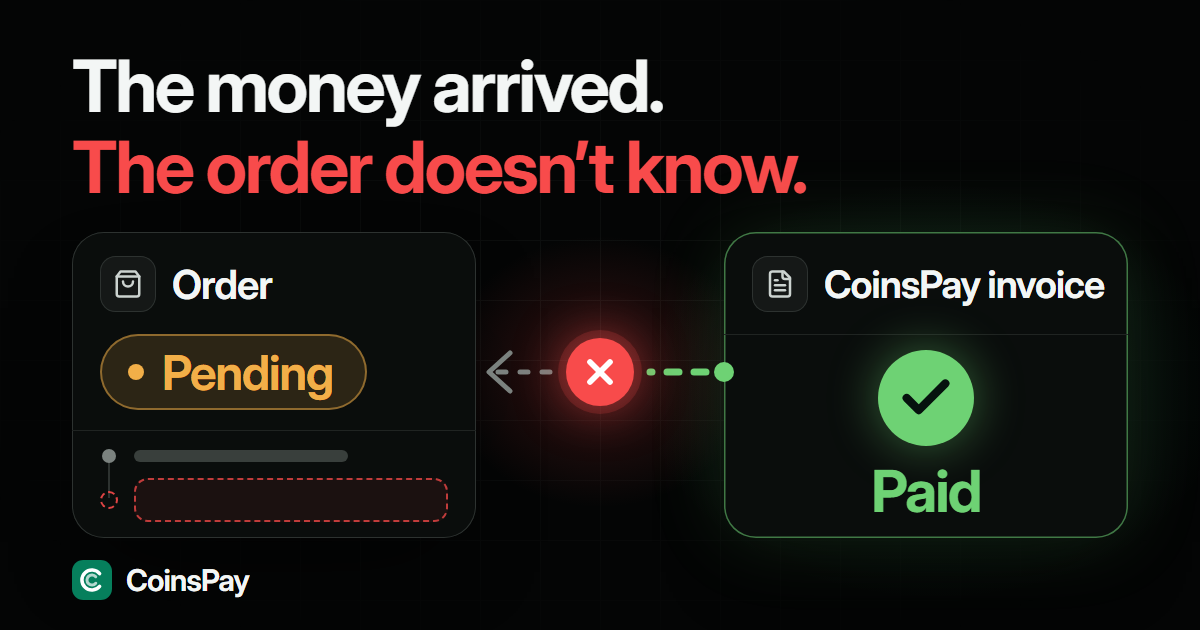
A customer paid for an annual license in USDT and is asking for their key. In the OpenCart admin the order sits in Pending, with no word of a payment. In the CoinsPay dashboard, the invoice was paid a while ago.
The money arrived; the notification got stuck on its way to your store. To save this order, press Refresh on the extension's Invoices tab: it asks CoinsPay about the invoice right away.
The short answer: you need the free CoinsPay extension for OpenCart, a CoinsPay account with a shop, an API key, your own wallet addresses and a site on HTTPS. The extension runs on OpenCart 1.5 to 4.1 and ocStore 3.0; the extension page has the archive and install steps for your version. For the key and for switching the method on, follow the order below instead. On 4.x, keep the name coinspay.ocmod.zip and press Install after uploading.
Installing the extension is the easy part. Your store is ready for USDT once you have pushed a payment, an underpayment and an expired invoice through it without real money and seen each one on the order.
Wallets first, then the key
A payment reaches your wallet only if its network has a rule (Payouts → Rules) with Automatic payouts on. Otherwise it stays on the receiving address, and a later rule won't pay it out.
We take USDT on TRON, BNB Smart Chain, Ethereum and Solana, so you need an address on each. We explained why that's good for your customers separately.
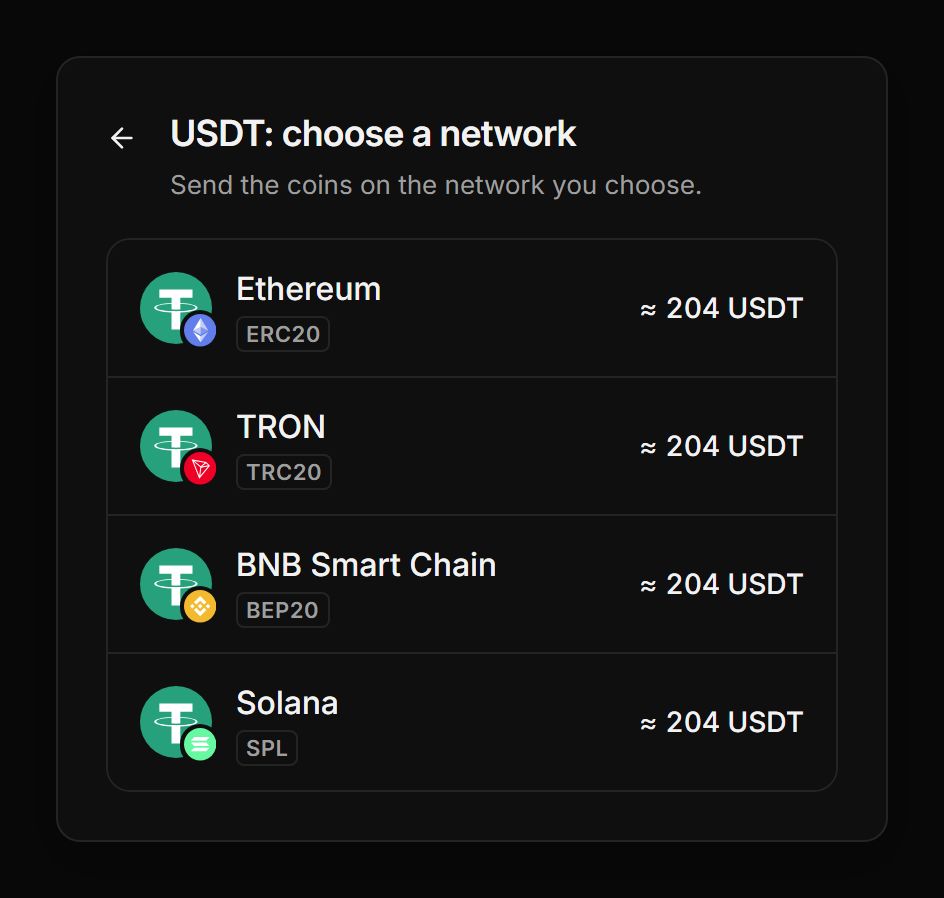
You can't offer USDT alone, but we suggest ticking "Accept stablecoins only (USDT and USDC)" in the extension settings: then rules on the four USDT networks are enough, as a rule covers every coin on its network. Without it, Bitcoin and Litecoin need rules too. An exchange address only works if the exchange takes both USDT and USDC on that network.
Each network also has a minimum payout. A smaller payment still pays the order but stays on the address.
The green check sees half the road
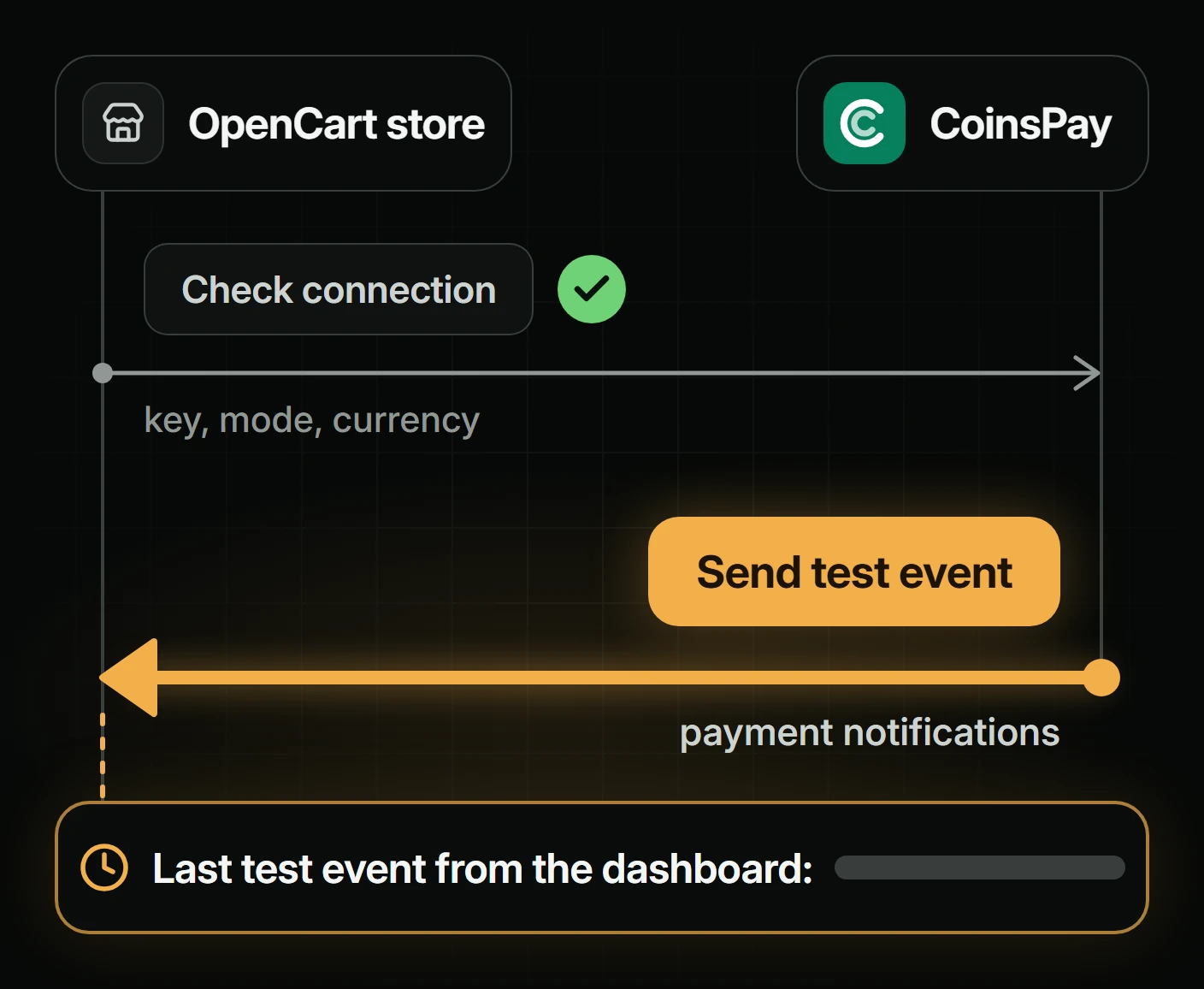
Start with a test key: issue one with "Test key" ticked and paste it into the extension. Press "Check connection", read Connected to the shop "…", test mode. Nice. But that tested the road from your store to CoinsPay, and the order above broke on the way back, where notifications travel. To test that:
- Copy the extension's "Webhook address" with its button, paste it into Endpoint URL on the dashboard's Webhook tab, press "Save endpoint".
- Copy the Secret Key (
whsec_…, shown once) into the extension's "Webhook secret" field and save. - Only now press "Send test event": the extension checks the signature against the saved secret.
- Reload the extension page and look for "Last test event from the dashboard" with a time.
No such line, no going further. The store won't warn you: an enabled payment method shows at checkout even without a secret, and orders come in while their notifications are turned away. An old secret or a security layer looks the same.
Why the notification doesn't arrive
Your site's answers are in the dashboard's Delivery log. A 401 means the secret isn't saved, is outdated, or the server clock is off. "The endpoint answered with a redirect" usually means www redirects to the bare domain; notifications don't follow redirects.
If Cloudflare is in front and the log shows a 403 without the extension's text, its "are you human?" check most likely stopped a server that has no browser. Exempt the notification address with a Skip rule, not by IP: we publish no fixed sender address. Bot Fight Mode can't be skipped, so it has to be off.
The extension can also ask about invoices itself. With few visitors, and on OpenCart 1.5, 2.0 and 2.1, that needs cron: have your host call the "Address for cron" every 5 minutes, in quotes, as it contains &.
A rehearsal without money
Turn the payment method on (Status, Enabled) and save. With a test key, by default only the test buyer sees it; the "Open the store as the test buyer" link works for a day in one browser.
Run four orders:
- "Pay". In about ten seconds the order gets your paid status and a comment starting with "CoinsPay (test):".
- "Pay part". The comment shows what came in and what's left; the status stays. Then "Pay the rest".
- No payment. Set "Time to pay, minutes" to 15, the minimum, save, let the invoice expire, then set it back (60 by default).
- Cancellation. Cancel an order in the admin; its invoice should be cancelled too (on 1.5, once cron runs).
A test payment completes a real OpenCart order: if your paid status subtracts stock, check it afterwards and remove the test orders.
Finally, issue the live key with "Invoices only" access, which can't withdraw money, and paste it in and save right away: it's shown once. The connection check reads even an unsaved key, but the extension works with the saved one. The connection check should say "live mode"; now everyone sees the payment method. The webhook secret stays. Then make one small real payment above the minimum payout to check what a test can't: the network, the address and the payout.
When customers pay the wrong amount
There is no underpayment tolerance. If an exchange keeps its fee out of a round amount, the invoice stays unpaid until the rest arrives. The payment page shows the customer what's left and a "Pay the rest" button. If a few cents short is fine, press "Mark as paid" on the invoice in the dashboard.
For other cases the extension leaves a note and you decide:
- Expired with part paid: the event "Expired partially paid"; the order stays in Pending by default.
- Overpaid: the order is paid, the extra shows in the comment. Any refund is a transfer from your own wallet; the dashboard has no refund button.
- Paid in full after the deadline: by default the order moves to your paid status, even one cancelled when time ran out. To check stock and price first, give "Paid after the invoice expired" its own status on the "Order statuses" tab.
- Paid after you cancelled the order: the event "Paid order that the store cancelled"; the order won't become paid by itself.
Why we built it this way
The extension doesn't take a notification at its word. It reads only the invoice number and asks CoinsPay for the rest with the shop's key, so a forged or replayed notification can't touch the order.
Where price, stock or the amount could have changed during payment, we left the decision to you on purpose. Forgiving an underpayment is your call too: two dollars short means one thing on a $20 order and another on a $2,000 one.
We haven't tested the extension with third-party themes or one-page checkouts. If you use them, the rehearsal will show whether they get along.
What USDT could bring
Let's run the numbers on an example. Say you sell annual software licenses at $240. In a month, 600 customers reach the payment step, and for 40 of them the card is declined or they don't have one. Suppose 15 of those 40 pay in USDT. That's 575 orders instead of 560 and $3,600 in extra revenue a month, or $43,200 a year if every month goes the same way.
All the numbers here are made up, and this is not a promise. Use your own: how many customers couldn't pay last month and what your average order is worth. The license in the example is paid once a year; the extension doesn't do recurring charges.
A month later, check how many orders were paid in crypto, which countries those customers are from and whether they had bought from you before. That tells you whether they are new customers or old ones who switched how they pay. The extension's Invoices tab shows the last 50 invoices with their order numbers.
Our service fee is as low as 0.3% per payout, and the first $500 of payouts within 10 days of your first payment are free of it. The network fee is deducted separately, at cost.
Start with the boring step: create an account, add a shop and enter payout addresses on every network your customers will see. Then install the extension and rehearse.