Accept crypto in  LiteCart
The CoinsPay module adds a "Cryptocurrency" payment method to the LiteCart checkout. Buyers pay in USDT, BTC, ETH or any of 30+ coins, a paid order gets your status and the payment date on its own, and the money goes straight to your wallets.
- LiteCart
- 2.5 to 2.7
- PHP
- 7.0 to 8.5
- Module
- free, GPL 3.0
What the module gives you
Orders update themselves
You pick a status for each invoice event: payment on its way, paid, underpaid, expired. A paid order gets the payment date and the CoinsPay invoice as its transaction. Every event adds a comment with the amount, coin and transaction hash to the order; the buyer does not see it.
Money lands in your wallets
CoinsPay does not hold your revenue: every payment goes on to your wallets by the payout rule of your shop. Each network takes up to 5 addresses with shares, say 70% to you and 30% to a partner.
Prices stay in your store currency
The invoice is made in the currency of the order, or in the store currency if CoinsPay does not take it. CoinsPay converts the total at the current rate and holds the coin amount for 30 minutes while the buyer opens a wallet.
A key that cannot withdraw
The module only needs a key with "Invoices only" access: it can create invoices and follow them, but it cannot move money. The panel never prints the key, and the form keeps it in a password field.
Set up in five minutes
You need a CoinsPay account with a shop, the LiteCart admin and access to the store files, by FTP or the file manager of your hosting. No developer required.
- 01Install the moduleCopy the contents of the public_html folder from coinspay-litecart.zip into the root of your store. Then press Install next to CoinsPay under Modules → Payment. No LiteCart file is replaced.
- 02Paste the keyIn the CoinsPay dashboard create a key under "API keys" with "Invoices only" access and paste it into "API key" in the module settings.
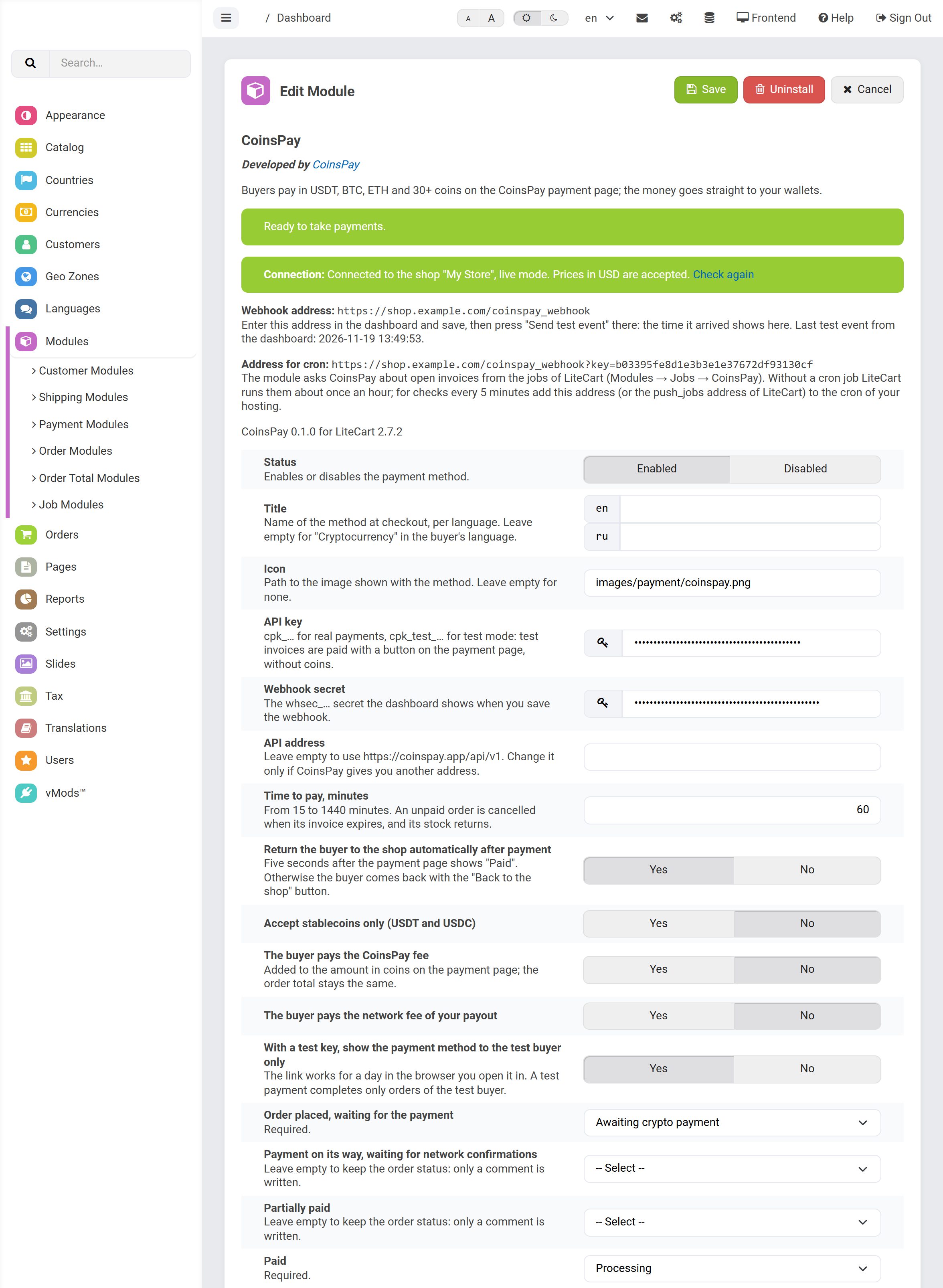
- 03Connect the webhookCopy the webhook address from the panel at the top of the settings to the "Webhook" section of the dashboard, and the whsec_ signing secret back into the module.
- 04Check and saveSave: the panel checks the connection and shows the name of your CoinsPay shop. Look over the statuses of the invoice events, and the payment method is already at checkout.
It handles the awkward cases too
Underpayments, expired invoices, cancelled orders: the module sets the status you chose and leaves a comment on the order about what happened.
Payment on its way
While the network confirms a payment, the order gets a comment with the amount and the transaction hash. The order keeps the "Awaiting crypto payment" status, and its stock stays reserved.
Underpayment
If less arrives, the order gets a comment with what was received and what is left, and the buyer can pay the rest on the same page. If the invoice expires part-paid, the order gets the "Crypto payment review" status for you to decide.
Expired invoice
You set the time to pay, from 15 minutes to a day. An unpaid order moves to Cancelled, and its reserved stock is free again. A payment that arrives later still counts.
Cancelled in the store
Put an order into a cancel status, and the module cancels its CoinsPay invoice at the next check, so it can no longer be paid. A payment for a cancelled order or for the wrong amount gets the "Crypto payment review" status.
Paying later
A buyer who closed the payment page finds a "Go to payment" button on the "order placed" page while the invoice is open. One who paid on a phone sees that page of their order when they come back.
No payment gets lost
Webhooks are signed, and the module checks the signature. If a webhook does not arrive, a LiteCart job asks CoinsPay about open invoices: about once an hour on its own, every 5 minutes with a cron job.
The buyer can pay the fee
Turn these settings on and the CoinsPay fee and the network fee are added to the coin amount on the payment page. The order total in your store stays the same.
Everything on one screen
The panel above the settings says whether the module is ready, checks the connection, shows when the test event from the dashboard arrived and lists the last invoices with a "Refresh" link.
Test mode
With a cpk_test_ key, invoices are paid with a button on the payment page and no coins move. Only the test buyer sees the payment method, so real customers never notice it.
Installation
One archive fits LiteCart 2.5, 2.6 and 2.7. It is on GitHub with the source code. Copy its files into the store and install the module in the admin: the module only adds its own files.
API documentation- LiteCart
- 2.5 to 2.7, tested on 2.5.5, 2.6.3 and 2.7.2
- Languages
- English and Russian
- PHP
- 7.0 to 8.5, whatever your LiteCart runs on
- License
- GPL 3.0
Pay only when you get paid
- First 10 days fee-free, on payouts up to $500
- No monthly or setup fee
- The fee can go on the buyer’s invoice
- Network fees at cost, no markup
Questions about the module
All questionsHow much does the module cost?
The module is free. You only pay the CoinsPay fee on payouts: as low as 0.3%, going down as your turnover grows, with no monthly fee. For the first 10 days after your first payment, payouts up to $500 carry no fee.
Which coins can buyers pay with?
More than 30 coins and tokens on TRON, Ethereum, BNB Smart Chain, Solana, Bitcoin and Litecoin: USDT, USDC, BTC, ETH, BNB, TRX, LTC, SOL and more. A module setting can limit the choice to stablecoins.
Why is the order placed before the payment?
So the goods are not sold twice while the network confirms the payment. The module saves the order before sending the buyer to the payment page, with the "Awaiting crypto payment" status that reserves the stock. If the invoice expires unpaid, the order is cancelled and the stock is free again.
What if the buyer goes back to the checkout?
If they confirm the order again, LiteCart creates a new order with a new invoice. The first one stays unpaid and is cancelled when its invoice expires, so its stock comes back.
When does the buyer get an e-mail?
LiteCart sends the order confirmation when the buyer comes back to the store after paying, in the same browser. To e-mail the customer when the payment arrives, turn on "Notify" for your paid status under Orders → Order Statuses.
Can I offer crypto only for some orders?
Yes. The settings take a minimum order total and a geo zone, and the name of the payment method can be set for each language of the store.
What buyer data goes to CoinsPay?
The order number, the total and currency, the names and quantities of the items and the address to send the buyer back to after payment. Buyer names, emails, addresses and phone numbers are not sent.
Can I connect a staging copy of my site?
Yes, but give it a separate CoinsPay shop. A shop has one webhook address, so its events would reach only one of the two sites.
Start taking crypto today
Signing up takes a minute and setting up a shop about five more. Connecting is free.
LiteCart is a registered trademark of its founder T. Almroth, LiteCart AB. CoinsPay is not affiliated with LiteCart AB, and the module is not sponsored or endorsed by it.