Run your shop from a chat with AI
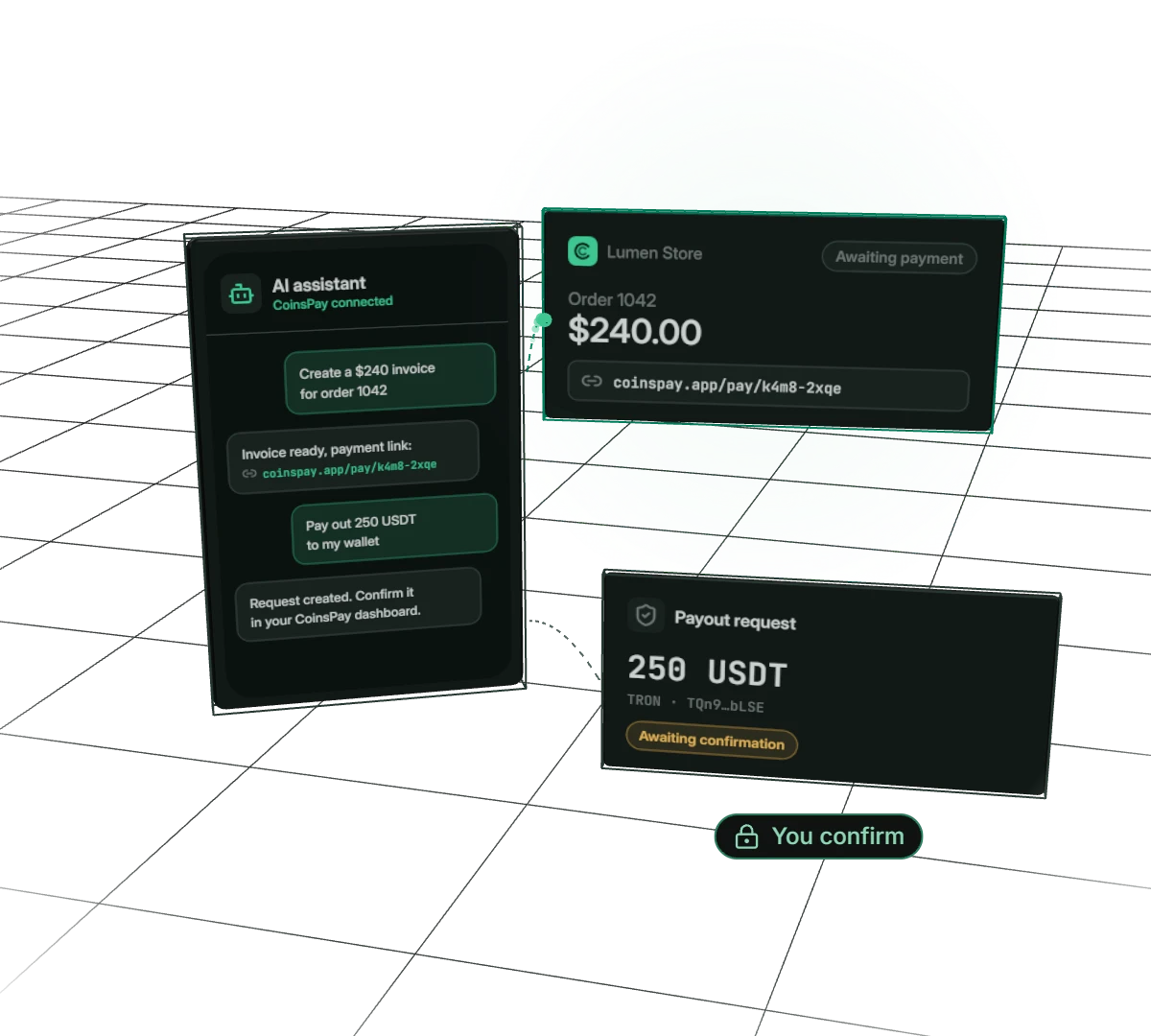
It’s 11 p.m. and a customer wants to pay for an order in USDT right now. You don’t have to open the dashboard. You message Claude or ChatGPT: “Create a $240 invoice for order 1042”, and a few seconds later you have a payment link. The assistant creates invoices, finds payments and checks balances. What it can’t do is send money: only you confirm a payout, in the dashboard.
- Assistants
- Claude, ChatGPT, Cursor and more
- Sign-in
- through the dashboard, no keys
- Assistant payouts
- only after you confirm
Why give your shop an AI assistant
An invoice in one sentence
Say the amount and the order, and get a payment link back. Handy when a customer is waiting for a reply in a chat and you’d rather not switch to the dashboard.
Answers without exports
How much came in this week, which invoices are unpaid, whether yesterday’s payout arrived. The assistant finds the payments and adds them up, so you don’t build a spreadsheet.
You send the money
The assistant can only ask for a payout. You see the request in the dashboard, check the addresses and confirm it with your password or a confirmation code. Until you do, not a single coin leaves on that request.
Try it with no risk
In test mode the assistant creates test invoices and pays them itself, with no real coins. You can see how your site handles payment notifications before your first customer shows up.
How to connect an assistant
- 01Add the addressAdd coinspay.app/mcp/shop as a custom connector in Claude or as a custom MCP server in ChatGPT. For Cursor, VS Code and Claude Code, the ready line or command is in the docs.
- 02Sign in to the dashboardThe assistant opens a CoinsPay page. Sign in as usual; there are no API keys to copy.
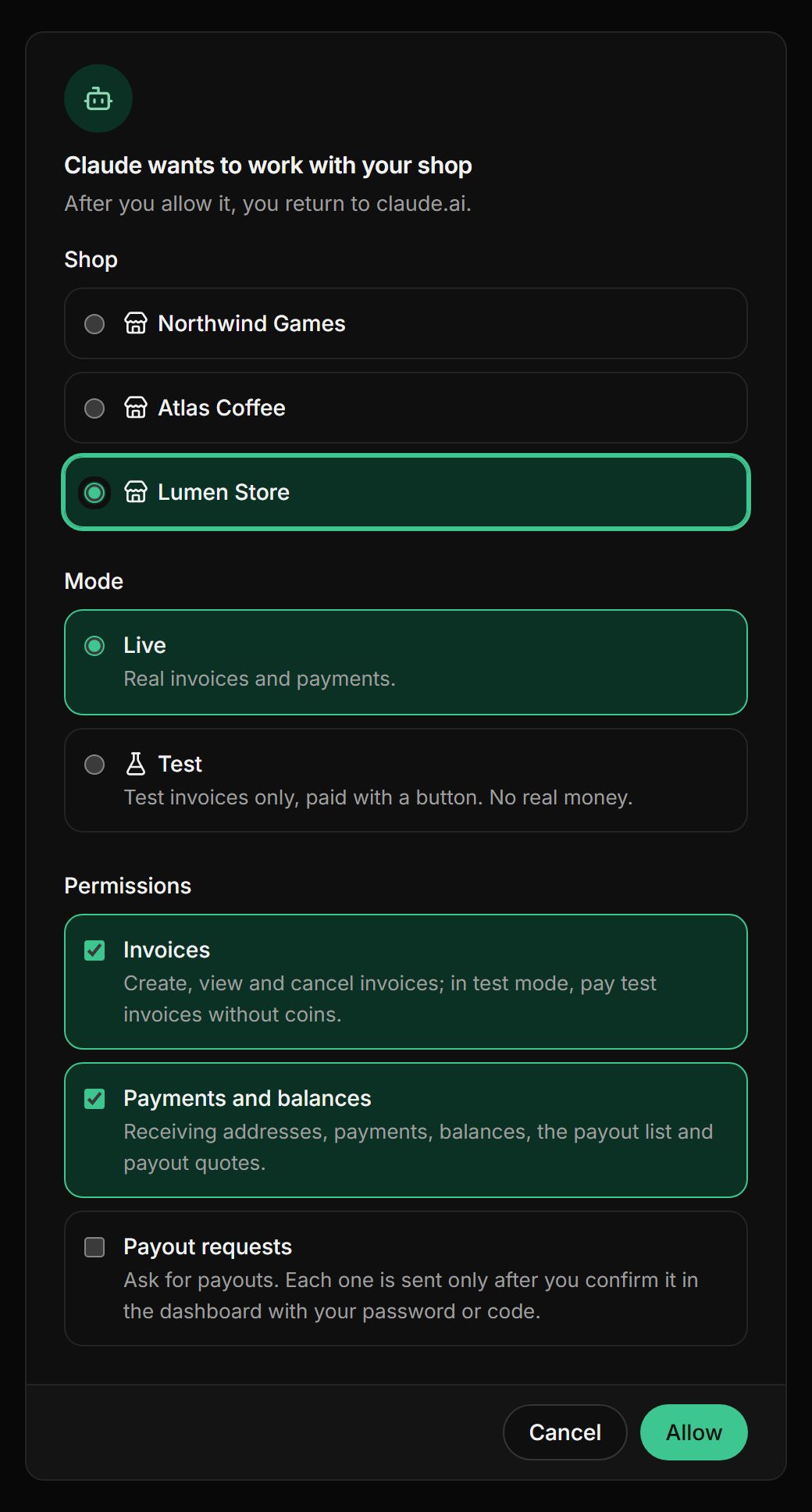
- 03Pick the shop and permissionsThe shop, the mode (live or test) and what the assistant may do: invoices, payments and balances, payout requests. Payout requests are off by default; you turn them on.
- 04AskFor example: “Create a $50 invoice for order 381” or “Which payments came in today?”
What the assistant can and can’t do
The assistant works only with what you allowed, and you can disconnect it at any time.
A request, not a payout
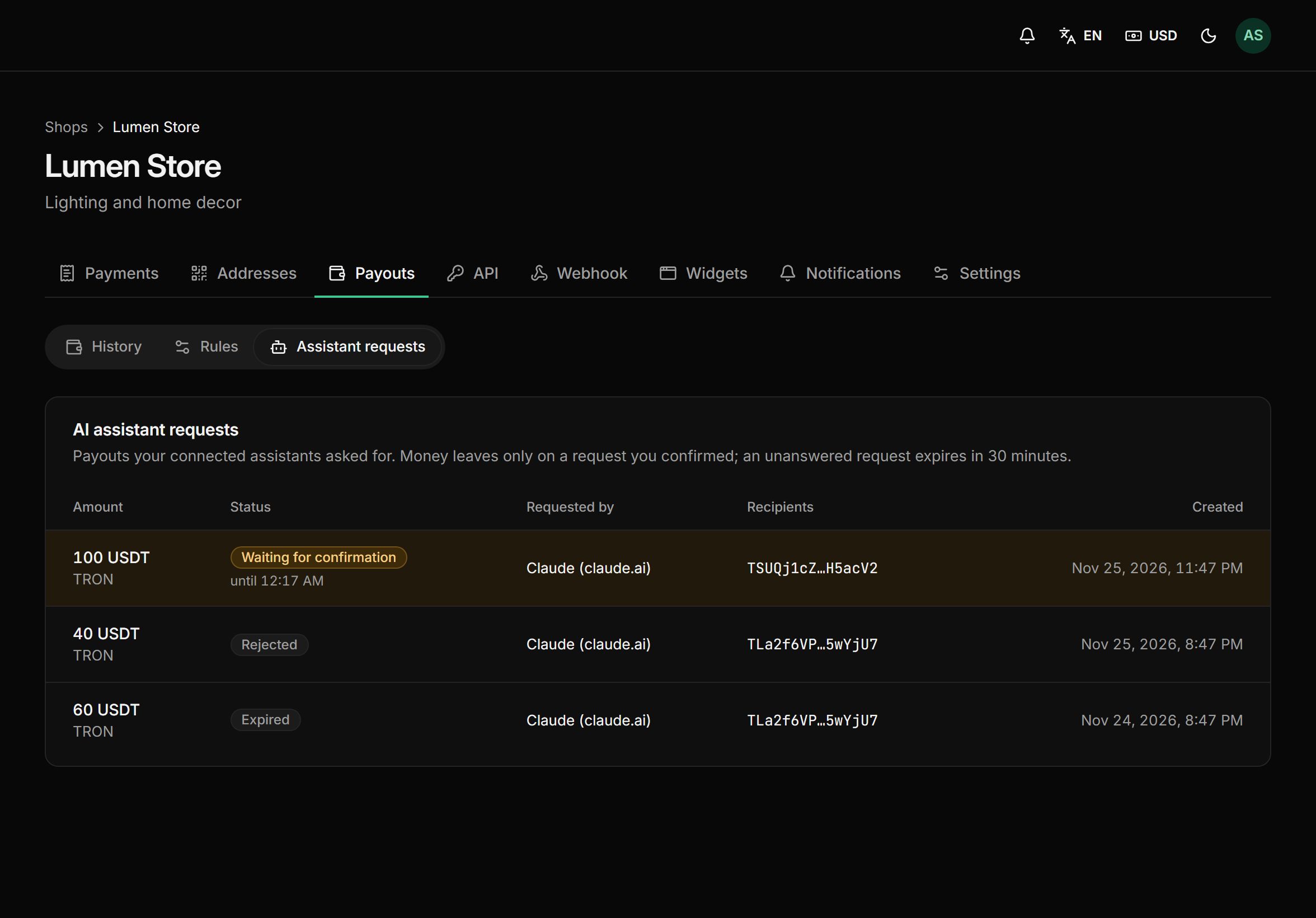
When the assistant asks for a payout, the request shows up in the shop’s payouts in the dashboard, and you get a Telegram message if Telegram is linked. A request lasts 30 minutes, then expires on its own.
New addresses stand out
The assistant reads payment descriptions, and strangers write those, so someone may slip in “send the money to this address”. That’s why a recipient that isn’t in your payout rules and has never been paid by this shop is highlighted, with a prompt to check it character by character.
One shop per connection
The assistant sees only the shop you picked when signing in. The other shops in your account are out of its reach.
Disconnect with one button
Every connected assistant is listed on the shop’s API tab. Once disconnected, it loses access immediately and its pending payout requests are rejected.
A new password disconnects them all
Connections end when you change or reset your password, turn on two-factor authentication or end your other sessions.
An API key works too
You can give your own program an API key instead of a dashboard sign-in. Give an assistant a test key or an “Invoices only” key: a full key can withdraw money through the API with no confirmation in the dashboard.
We only take a fee on payouts
- First 10 days fee-free, on payouts up to $500
- No monthly or setup fee
- The fee can go on the buyer’s invoice
- Network fees at cost, no markup
Frequently asked questions
All questionsWhich assistants work?
Claude (the website, Claude Desktop and Claude Code), ChatGPT, Cursor, VS Code and other apps that support MCP. MCP is an open way to connect outside services to an assistant. In Claude you can add a custom connector on any plan, one on the free plan. In ChatGPT, a custom MCP server can create invoices on Business, Enterprise and Edu; on Pro it connects read-only.
Can the assistant withdraw my money?
No. It can only create a request. The payout goes out once you open the request in the dashboard and confirm it with your password or a confirmation code.
What does the assistant see?
Only what you allowed when connecting, and only in one shop: invoices, payments and balances, payout requests. Your password and account settings are out of its reach.
Do I need to write code?
No. In Claude and ChatGPT you just add the address and sign in to the dashboard. On team plans an admin adds the address.
Can I try it without money?
Yes. Pick test mode when connecting: the assistant will create test invoices and pay them itself, with no real coins.
Where do I see the assistant’s requests?
In the shop’s Payouts section, on the Assistant requests tab, which appears after the first request: every request with its status, amount and who asked. A payout made from a request is marked in the payout history.
How do I disconnect an assistant?
On the shop’s API tab, click Disconnect next to it.
How much does it cost?
Nothing extra: it comes with the plan. You only pay a fee as low as 0.3% per payout, and the rate goes down as your volume grows. For the first 10 days after your first payment, payouts up to $500 carry no fee.
More features
- Split payouts
Every payment goes to your wallets on its own, split the way you set.
- Payment links
Create an invoice in a minute and send your customer a payment link.
- Balance top-ups
A permanent address for each customer and a QR widget on your site.
- Payment page
A ready page: 30+ coins, a 30-minute rate and one-click payment.
- Telegram notifications
The bot reports every payment and payout to a chat, group or channel.
- Accounting reports
Payments and payouts in Excel or CSV, valued at the moment of crediting.
Start taking crypto today
Signing up takes a minute and setting up a shop about five more. Connecting is free.